Actions reference
There are four types of actions that can be executed with triggers. Set field and Send email actions are also available for Scheduler tasks or SLA policies.
Assign ticket
This action assigns tickets to agents with the Active status enabled.
You can find the status toggle in an agent’s account in the HelpDesk Contacts list.
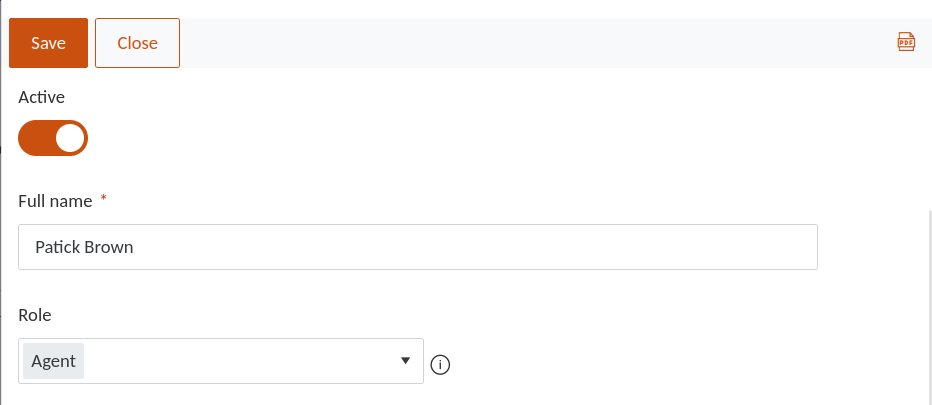
If an agent is disabled (for example, leaves the company or is on vacation), their tickets are automatically reassigned to another available agent.
The action includes the following settings:
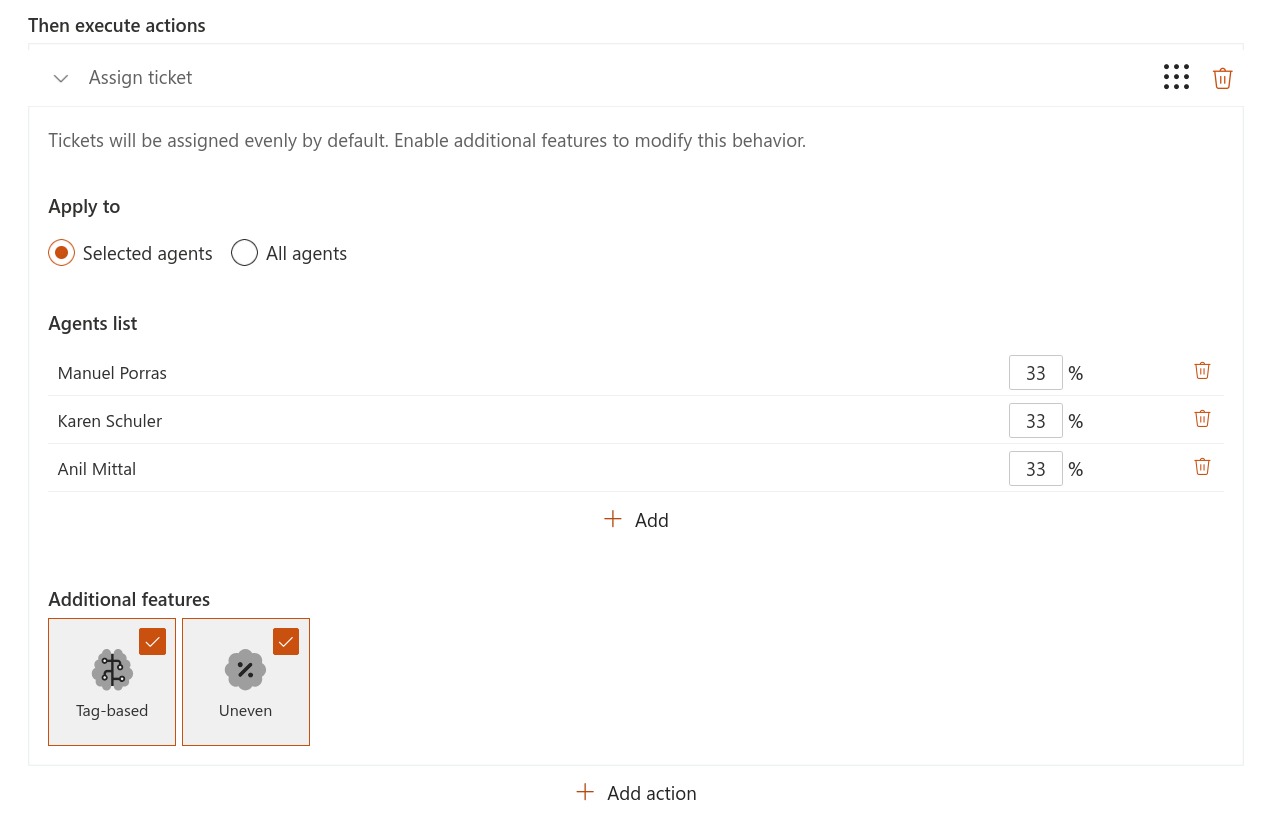
Apply to: choose whether to assign tickets to selected agents or all agents.
Agents list: select agents for assignment (use the Add button).
Assignment methods
You can control how tickets are distributed using the following options:
Even distribution: tickets are assigned evenly across agents.
Tag-based: tickets are assigned based on agent tags. Each agent has a Tag field that defines their specialization.
Uneven: assign tickets based on a percentage (weight) for each agent. This defines how many tickets each agent receives relative to others.
Based on the activated features, there are three possible scenarios. Take a look:
Set field

This action updates fields in the Tickets list.
Settings
Field name: select the field to update.
Field value: define the value for the selected field (depends on the field type).
Supported field types
Text fields

Enter a value directly or use a context token.
Tokens are enclosed in double braces and return dynamic values from the current ticket. For example, {{Ticket.Tags.Title}} inserts the value of the Tags field.
Date fields
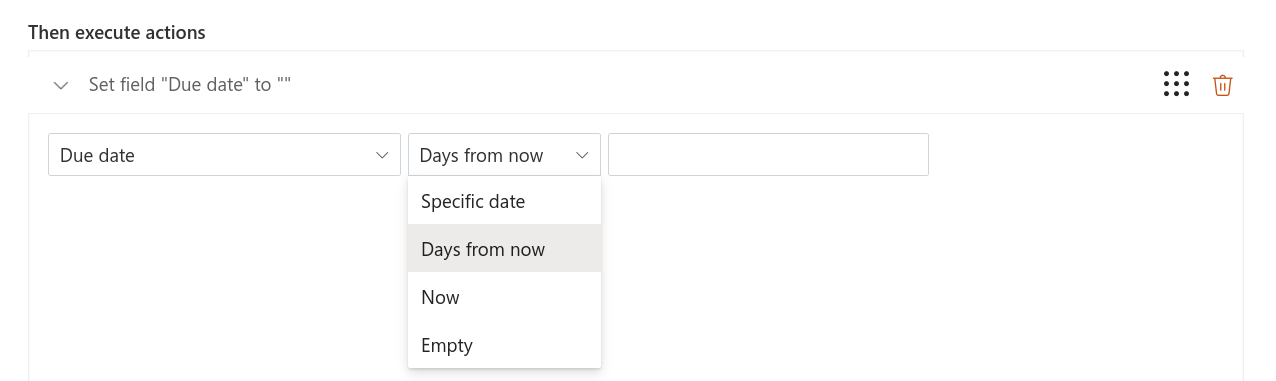
You can either:
specify a number of days from now, or
select a specific date.
AssignedTo field
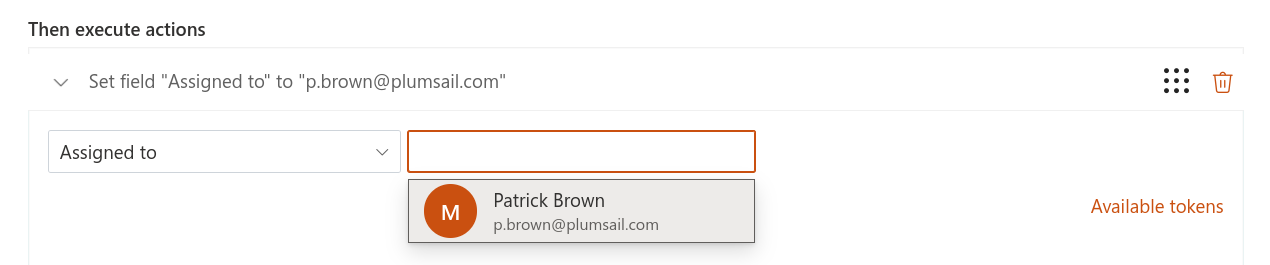
Select a user from the SharePoint directory.
Tags field
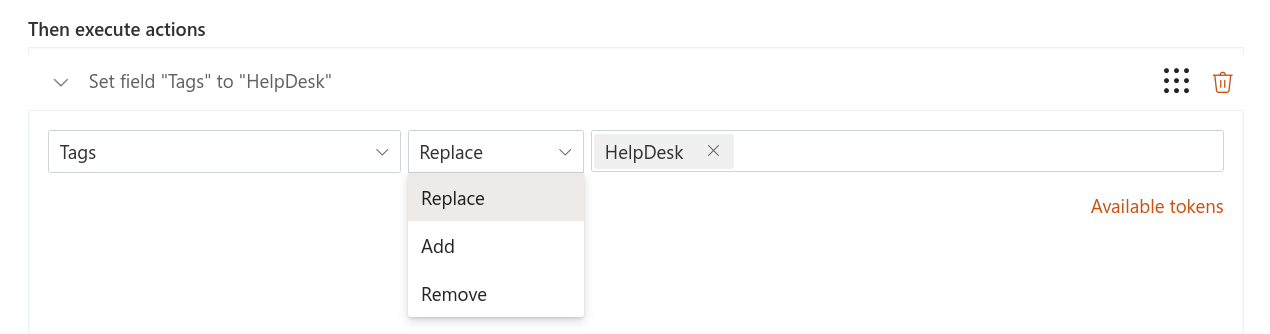
Select one or more tags. You can also choose how tags are applied:
Replace: removes existing tags and add new ones.
Add: adds new tags to existing ones.
Remove: removes selected tags.
Send email
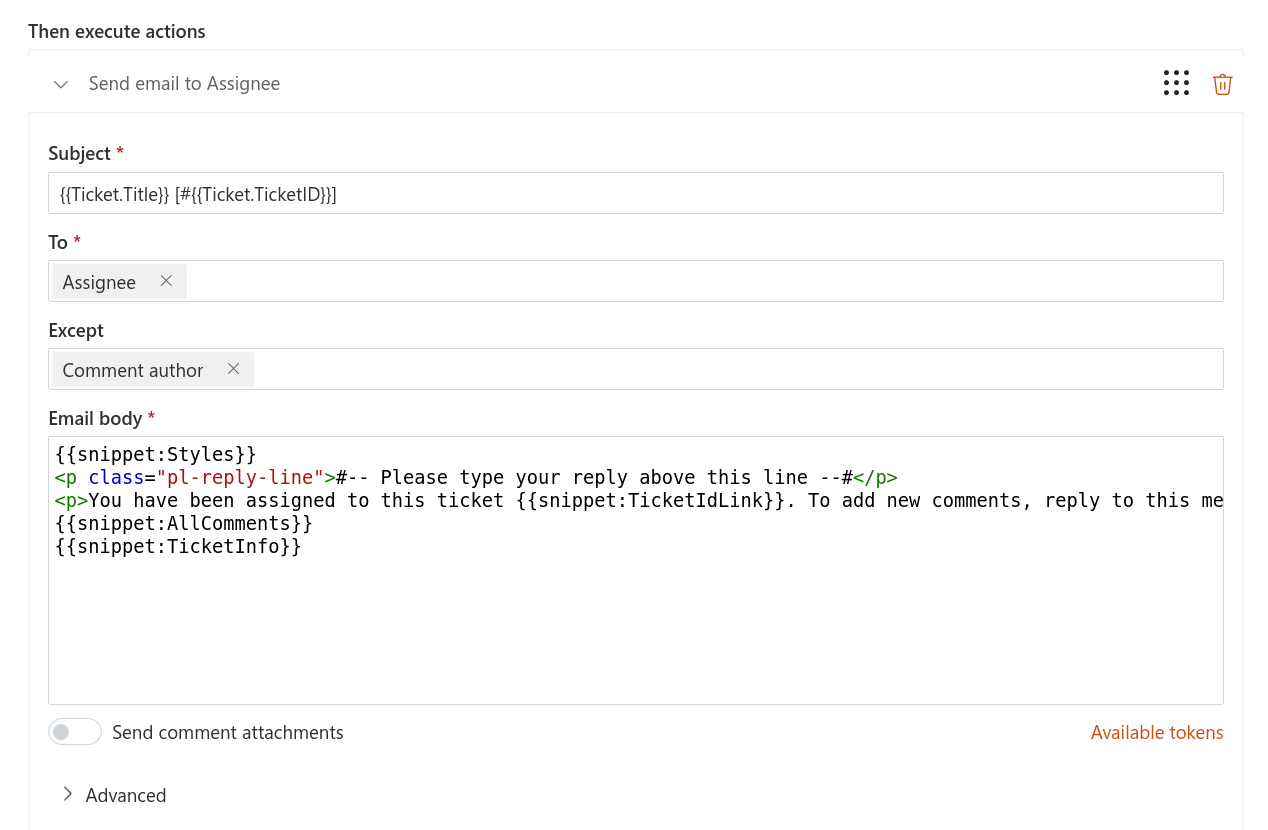
This action sends emails to one or more recipients. You can use tokens in all fields to include dynamic ticket or comment data.
Settings
To: (required) recipients. Supports contacts and tokens.
Except: (optional) exclude specific recipients. Supports contacts and tokens.
Subject: supports tokens.
Attachment URLs: semicolon-separated URLs (for example:
{{Comment.AttachmentUrls}}).
In addition to existing contacts and tokens, you can use predefined groups such as Cc (Agents) or All mentions (Agents) to target specific types of recipients.
Recipients
Instead of selecting specific contacts, you can use predefined tokens:
All agents: all contacts with the Agent role.
Requester: the contact from the Requester field.
Cc: contacts from the Cc field. You can also choose to target only agents (Cc (Agents)), members (Cc (Members)) or end-users (Cc (End-Users)).
Assignee: the user from the Assigned to field.
Comment author: available only for the Comment has been created event.
All mentions: all contacts included in a mention (using
@). You can also choose to target only agents (All mentions (Agents)), members (All mentions (Members)) or end-users (All mentions (End-Users)).
Email templates
You can build dynamic email templates using tokens and snippets.
Tokens insert values from tickets or comments (for example, title or ID).
Snippets insert predefined blocks of content.
Hint
For more information on tokens, read the section below.
Use these elements in the Subject and Email body to create dynamic and reusable notification templates.
See the documentation on Building advanced email templates for more details.
Change comment type to private
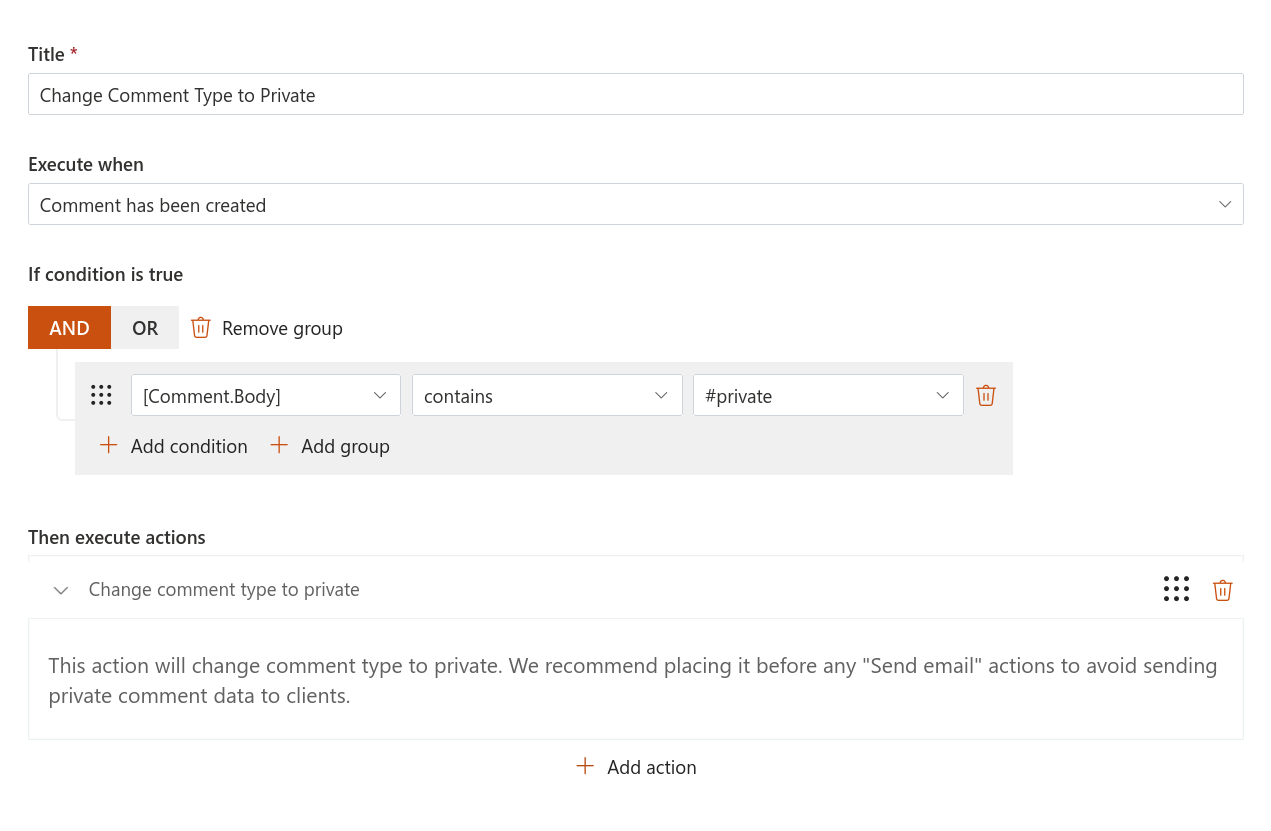
This action converts a public comment into a private note. It requires no configuration and is available only for the Comment has been created event.
For example, an agent replies to a ticket via email and includes the keyword #private in the message.
The trigger checks for this keyword in the comment body. If the condition is met, the comment is automatically marked as private.
Note
Place this trigger at the top of the list to prevent other triggers from sending notifications to the requester about the comment.
Access ticket and comment field values with tokens
Tokens allow you to insert dynamic data from tickets and comments into actions such as Send email or Set field.
When an action runs, tokens are automatically replaced with actual values.
You can retrieve data from tickets or comments using the following tokens:
{{Ticket}}: current ticket (available in all events).
{{LastTicketVersion}}: previous version of the ticket (available in Ticket has been changed).
{{Comment}}: current comment (available in Comment has been created).
To retrieve a field value, use the field’s internal name:
{{Ticket.TicketID}}
{{Ticket.Title}}
{{Comment.Body}}
{{Comment.Type}}
Hint
In the example above, TicketID and Title are internal names of columns in the “Tickets” list. Meanwhile, Body and Type belong to the “Comments” list.
These tokens return values such as text, choice, date, or time. If a field contains multiple values, they are separated by semicolons.
To access data from lookup fields, extend the token path:
{{Ticket.Requester.Title}}
{{Ticket.Requester.Organization.Title}}
These tokens return values from related lists. For example:
Requester refers to the Contacts list
Organization refers to the Organizations list
For Person or Group fields, use predefined properties:
IDLoginNameTitleEmail
For example, tokens for the “Assigned to” field value will look as follows:
{{Ticket.AssignedTo.ID}}
{{Ticket.AssignedTo.LoginName}}
{{Ticket.AssignedTo.Title}}
{{Ticket.AssignedTo.Email}}